How to Record Audio on iPhone With the Screen Off (2026)

Recording audio on iPhone with the screen off is straightforward once you know which apps have permission to do it — and which ones look like they should but silently stop the moment your phone locks. This guide covers the three reliable methods and explains the iOS rules underneath so you can spot the difference yourself. To check the ambient noise level of your recording environment first (which caps the intelligibility of anything you record), use our browser decibel meter.
Why iOS makes this harder than it looks
Every iOS app has to declare in advance what background permissions it needs. For audio recording, the relevant declaration is UIBackgroundModes with the audio mode enabled. Apps that haven’t declared it get their microphone access silently suspended when the screen locks — no error, no warning, just no data captured for the duration.
This is why some third-party recorder apps appear to record with the screen off but produce silent files, or files that suddenly cut off 30 seconds in. The app didn’t crash; iOS suspended it and it kept the UI running when you unlocked, hiding the failure.
How to tell if an app has background audio permission: while it’s recording, lock your iPhone. If the orange dot next to the clock (the microphone indicator) stays visible while locked and the recording waveform keeps drawing when you unlock a few minutes later, the app has proper background permission. If either goes away, it doesn’t.
Method 1: Voice Memos (built-in, most reliable)
Voice Memos is Apple’s own recorder and has proper background-audio entitlement. Screen-off recording just works.
- Open Voice Memos.
- Tap the red record button.
- Lock your iPhone. Recording continues.
- Unlock when you’re ready to stop.
Strengths: always available, no third-party trust required, automatic iCloud sync, decent audio quality using the primary mic.
Limits:
- No amplification during recording — you get the raw microphone input
- No EQ or noise reduction beyond Apple’s fixed processing
- No visual monitoring while locked (you can’t see the input level)
- Files are proprietary
.m4ain Apple’s format — mostly universal but occasionally awkward
For most in-person recording — meetings, lectures, interviews you’re part of — this is the correct answer.
Method 2: Shortcuts + Back Tap (hands-free start)
If you want to start a recording without pulling your phone out, iOS 14+ lets you trigger a Voice Memos recording with a double- or triple-tap on the back of the iPhone. It’s genuinely one of the more useful hidden features.
- Open Settings → Accessibility → Touch → Back Tap.
- Choose Double Tap or Triple Tap.
- Under the “Shortcuts” section, select a shortcut that records — or install one from the Shortcuts Gallery.
You can build your own in the Shortcuts app: New Shortcut → add “Start Recording” action → save. Once assigned to Back Tap, a discreet tap on the back of the phone starts a Voice Memos recording. The screen can be locked before or after.
Caveats:
- Back Tap sometimes triggers on hard bumps (bag, pocket). Test in normal daily conditions before relying on it.
- The exact “Start Recording” shortcut behaviour changed slightly in iOS 17 and again in iOS 26 — check the shortcut still works after major iOS updates.
Method 3: Third-party amplifier apps with background recording
Voice Memos records; it doesn’t amplify. If you want both — amplified live listening AND a saved recording, both continuing with the screen off — you need a third-party app that combines the two functions with proper background entitlement.
Apps we’ve verified with proper background-audio permission (recording continues with screen locked):
- Spy Hearing — 16× amplification, 5 EQ presets, saves recording to Files
- Sound Amplifier: Hearing Aid App — high gain, 8-band EQ, records
- Petralex — audiogram-based EQ, records
- Sounds Good! Hearing Amplifier — 5-band EQ, records
Apps that fail with screen off (checked against latest App Store versions as of 2026):
- Apple Live Listen — streams to AirPods only, unreliable in background (known iOS bug that recurs)
- Ear Spy — records only while screen active
- Some ad-heavy “voice recorder” apps — silently stop when the interstitial ad expires
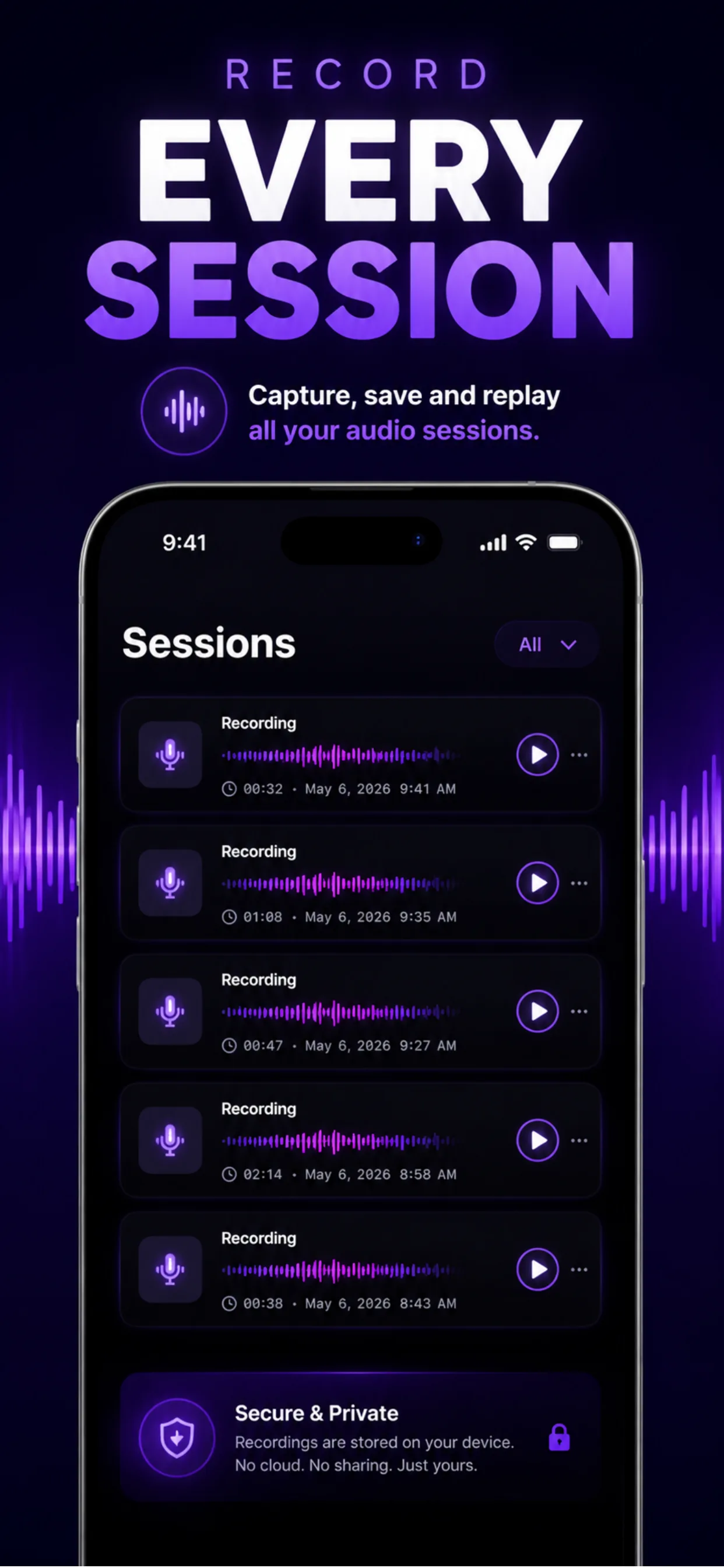
What definitely doesn’t record with screen off
- iOS Screen Recording — captures the phone screen, not the microphone. Doesn’t work at all when the screen is off (the whole point).
- Camera in video mode — locks the camera, doesn’t work.
- FaceTime, WhatsApp, Zoom, phone calls — audio recording in Apple call apps is now handled by Apple’s built-in call recorder (iOS 18.1+), which plays an audio warning to all parties. There’s no way around that in iOS.
- AirDrop-based mic sharing — doesn’t exist.
Best settings for long recordings
Recording for an hour or more? A few settings matter:
- Enable Airplane Mode if you don’t need connectivity. Cuts battery drain substantially.
- Turn Low Power Mode off. iOS may throttle the microphone or reduce processing when the battery is low. Long recordings need consistent input.
- Plug in charging — a 60-minute recording is fine on battery; a 4-hour lecture recording will drain your phone. Charge while recording.
- Free up storage first. A 1-hour Voice Memo is roughly 30 MB; not huge, but if your phone is full, iOS may kill background processes without warning.
- Test the setup in advance. Record 5 minutes with the screen off, lock, unlock, verify the recording continued. Do this the day before, not the day of.
Legal considerations
Recording audio is legal in the US in most situations you’re a party to — but not all. The rules:
- Federal law requires only one-party consent to record — you count. So recording a conversation you’re part of is federally legal.
- Twelve states require all-party consent: California, Connecticut, Florida, Illinois, Maryland, Massachusetts, Michigan, Montana, Nevada, New Hampshire, Pennsylvania, Washington. In these states, every voice on the recording must have consented.
- Recording conversations you’re not part of is illegal at the federal level in every state — regardless of your state’s one-party or all-party rule.
- Workplaces often have policies against recording that go beyond legal minimums. Check your employment contract.
- Public places have lower expectations of privacy but still aren’t a free-for-all — targeted recording of an identifiable individual can be legally problematic.
Detailed breakdown at Recording laws by state. This is educational, not legal advice.
Related reading
- Best iPhone sound amplifier apps — tested — apps that combine live listening with recording
- Live Listen alternatives + limits — why Apple’s Live Listen can’t be used to record
- Recording laws by state — before you record any conversation
Frequently asked questions
- Can iPhone Voice Memos record with the screen off?
- Yes. Voice Memos has proper background-audio entitlement from iOS. Start a recording, lock the iPhone, and recording continues until you unlock and stop it. The orange microphone indicator dot remains visible above the lock screen while it's recording.
- How do I record audio on iPhone in the background?
- Use an app with declared background-audio permission: Voice Memos (built-in), Spy Hearing, Petralex, or Sound Amplifier: Hearing Aid App. Start the recording, then lock or switch apps — recording continues. To verify an app supports this, start a recording, lock the phone, wait a few minutes, unlock: if the recording continued and the waveform kept drawing, the app has background permission.
- Why does my iPhone recording stop when I lock the screen?
- Because the app you're using doesn't have background-audio permission from iOS. When the screen locks, iOS suspends apps that haven't explicitly declared they need to keep processing audio. Voice Memos and properly-configured third-party recorders don't have this problem; many casual voice-recorder apps do.
- Can I use screen recording to capture audio with the phone locked?
- No. Screen recording captures the display, which is off when the phone is locked. There's nothing visual to record. For audio-only recording with a locked screen, use Voice Memos or an app with proper background-audio support.
- How long can iPhone record audio in the background?
- Until it runs out of storage or battery. On a fully-charged iPhone with Airplane Mode enabled and Low Power Mode off, Voice Memos can record continuously for 8+ hours. Storage-wise, one hour of Voice Memo audio is roughly 30 MB, so a 128 GB iPhone with 20 GB free could hold well over 500 hours of continuous recording.
- Can I record a phone call on iPhone with the screen off?
- iOS 18.1+ includes a native call-recording feature accessible from the in-call menu. It plays an audible warning to all parties when recording starts (Apple's compliance with all-party consent states). There's no way to bypass that warning within iOS. For in-person conversation recording — separate from phone calls — Voice Memos works fine with the screen off.